
How to Browse & Search Prompts
Find the perfect AI prompt using search, filters, and sorting options.
What You'll Learn
- • Search for prompts using keywords
- • Filter by business area and tags
- • Sort by date or popularity
- • Switch between view layouts
- • Vote and favorite prompts
- • Copy prompts to clipboard
Step-by-Step Guide
Navigate to Browse
Click "Browse" in the top navigation bar to access the prompt library.
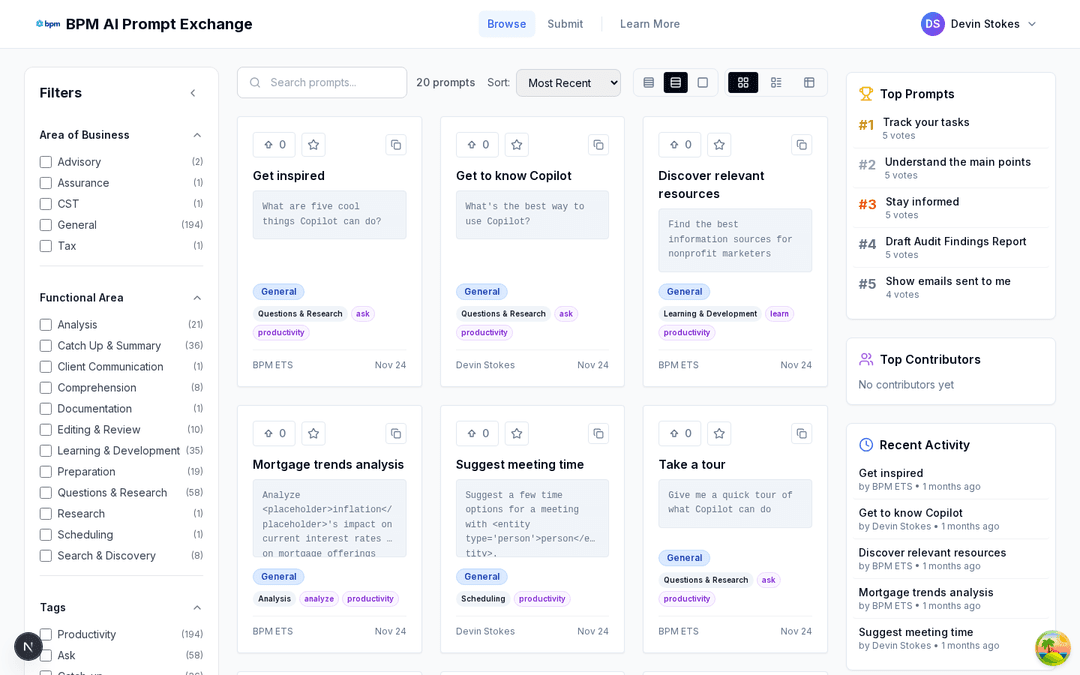
Search for Prompts
Use the search bar at the top to find prompts by keyword. Results update instantly as you type.
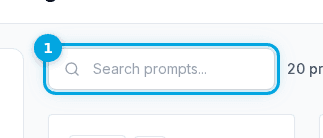
Filter by Category
Use the filter panel on the left to narrow results by Area of Business, Functional Area, or Tags. Click multiple checkboxes to combine filters.
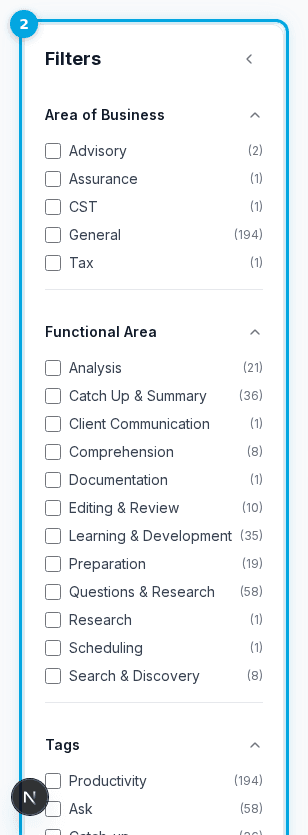
Sort Your Results
Click the sort dropdown to order by Most Recent or Most Upvoted.
Change View Layout
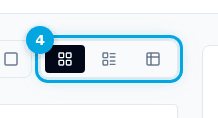
Use the layout toggle to switch between Grid, List, or Table views.
Interact with Prompts
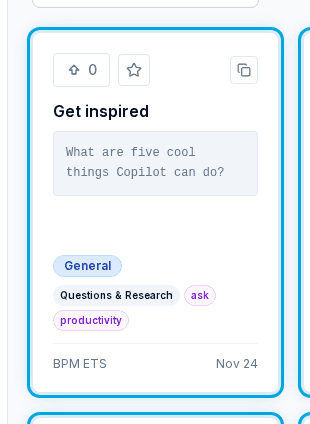
Each prompt card shows the title, content preview, author, tags, and vote count. Use the action buttons to vote, favorite, or copy.
Upvote Helpful Prompts
Click the upvote button to show appreciation for useful prompts. Popular prompts rise to the top when sorted by votes.
Copy the Prompt
Click the copy button to copy the prompt text to your clipboard, then paste it into your AI tool.
Quick Reference
| Action | How To |
|---|---|
| Search | Type in the search bar |
| Filter | Check boxes in left panel |
| Sort | Click sort dropdown |
| View | Click Grid/List/Table icons |
| Upvote | Click thumbs-up icon |
| Favorite | Click star icon |
| Copy | Click clipboard icon |
Frequently Asked Questions
No, you can browse and search without signing in. However, signing in lets you vote, favorite, and submit prompts.