
How to Submit a Prompt
Share your best AI prompts with colleagues. Follow this guide to write effective prompts and submit them for review.
Before You Begin
Make sure you're signed in to your BPM account. If you're not signed in, click "Sign In" in the header.
Step-by-Step Instructions
Navigate to Submit Page
Click "Submit" in the top navigation bar to see the prompt submission form.
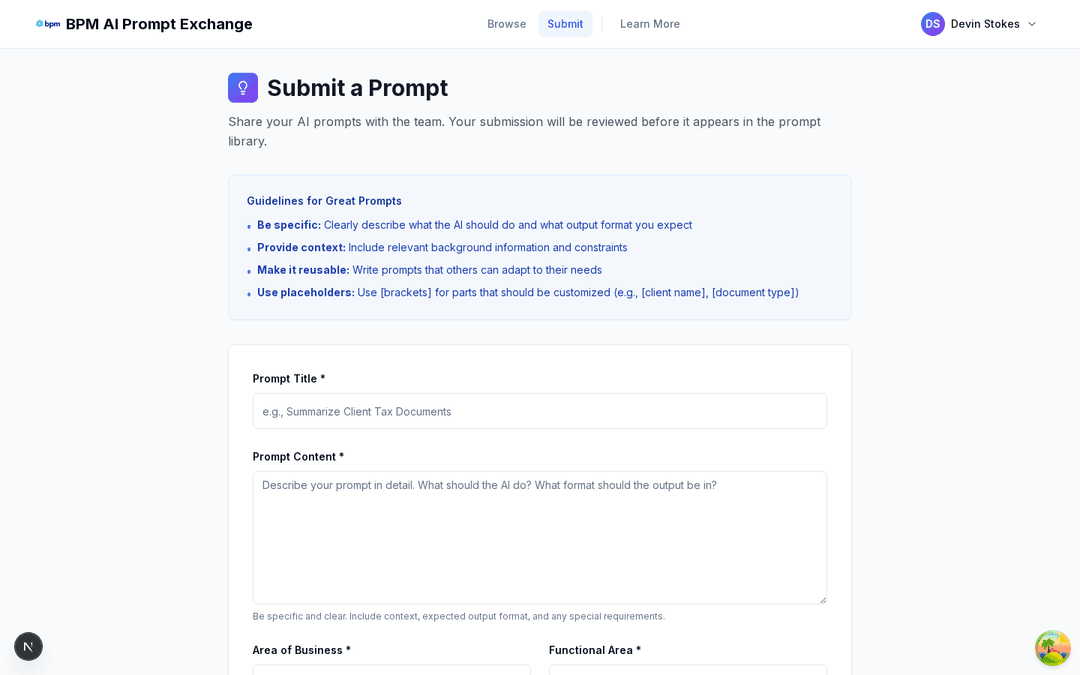
Read the Guidelines
Review the guidelines at the top. These tips help your prompt get approved and be useful to others.
Enter a Descriptive Title
Write a clear, concise title that describes what your prompt does. This helps others find your prompt.

Good examples: "Summarize Client Tax Documents", "Draft Professional Email Response"
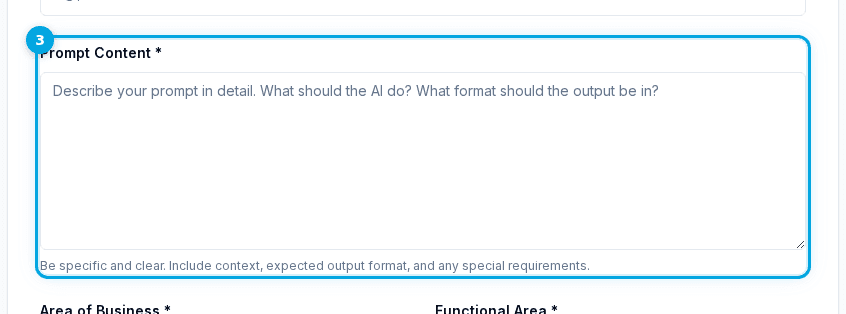
Write Your Prompt Content
Enter the full prompt text. Be specific about what the AI should do, include context, and specify the expected output format.
Select Categories
Choose the Area of Business and Functional Area that best match your prompt.

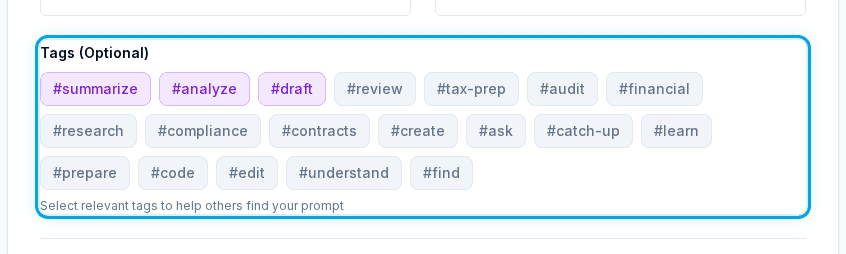
Add Tags (Optional)
Click on relevant tags to add them. Tags help others discover your prompt through search and filtering.
Submit Your Prompt
Once all required fields are filled, click "Submit Prompt". You'll see a success message when submitted.
Frequently Asked Questions
Yes, you must be signed in with your BPM account to submit prompts.